Thursday, June 5, 2008

New Communicator Add-in for Outlook

I've saw an updates from one of the MVP blogs, Microsoft has a new version of communicator Add-in for Outlook. It's pre-release version currently (only selected MVP with invitation would have permission to test out).

In the meantime, here's what's new followed by some of my other thoughts...

Fixes & Updates:

  • UI
  • Created a TreeView instead of ListView.
  • This allows collapsible\expandable groups, just as in Communicator. I think this is a better approach than having an option to display certain groups.
  • Smaller UI details.
  • Fix UI for 120 DPI

Functionality

  • Allow filter of Offline & Away users. Will redisplay users when they are available again or will hide users if they are away or offline. Dependant on the you setting the filter.
  • Will display groups that contain a “~”

Limitations due to API

  • The API doesn’t give me access to Access Level or Distributions List.
  • The API doesn’t give me access to the Recent or Other Contacts Groups.

Bugs

  • The Show\Hide button doesn’t always respond.
  • “Out of Office” is being considered as Away instead of Offline.
  • Graceful error handling, IE if Communicator isn’t signed in.

Install Instructions (Uninstall Previous Version1.)

  1. Extract it the zip to some where besides the desktop. I’m using ClickOnce for installation, so the install should go somewhere you want it to reside.
  2. Close Outlook
  3. Run the setup.exe as Administrator. It will require .NET 3.5 & VSTO 3.0 Runtime. The installer will help you out there.
  4. During installation it will say it’s not from a Trusted Publisher as I do not have a certificate for this installation. Click Ok.
  5. Open Outlook

Office Communications Server 2007 R2 Rumors

I just got some updates from some MVP blogs; Microsoft have decided to release a R2 version of Office Communications Server 2007 by the end of 2008. This was not planned in the original product roadmap, and the next release should have been OCS 2009, by the end of 2009.This is great news! The R2 release is going to contain contain a lot of the features that we have been waiting for. especially about telephony handeling and routing. Sure there will be alot of bugs fixed as well in the R2.

Please note that this information is based on second hand information, and has not been confirmed by Microsoft

Thursday, May 29, 2008

WebMessenger extends Microsoft OCS to Nokia users

WebMessenger will support Nokia handsets on its middleware platform.

WebMessenger has added support for Nokia handsets to its messaging middleware platform, which enables a wider range of corporate phones to be used with Microsoft Office Communications Server (OCS) for mobile presence and messaging functions.

Read more at http://www.itweek.co.uk/itweek/news/2217568/webmessenger-extends-microsoft (by Daniel Robinson, IT Week, 27 May 2008)

Changing Live Meeting invation information in OCS 2007

The information of the company name and URLs that comes with the live meeting invitation in OCS 2007 can be change. Let's see how to change the default settings, as follows:
  1. Open Microsoft Office Communicaton Server 2007 console
  2. Expand Forest - <Domain name>
  3. Expand Standard Edition Servers
  4. Expand <OCS Pool Name>
  5. Right click on <Domain name>,click on Properties and then clickon Web Conferencing Properties
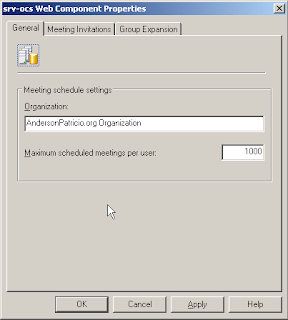
  6. In General tab, fill out with your organization name as shown in the figure below

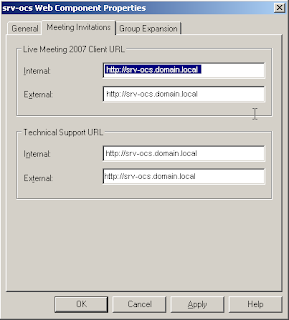
We can also modify the URL's that go with the invitation. To do that click on Meeting invitations and change the internal and external URLs.


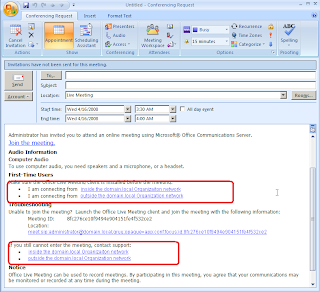
Let's try our new configuration, if you have the Live Meeting add-on installed, create a new Live Meeting and you will see your company name and your URLs in the invitation.

IIMF on OCS 2007

In OCS 2007 we have the IIMF (Intelligent IM Filter) built-in into the product. In this post we are going to enable the IIMF feature to filter URL in a OCS 2007 Standard Edition, as it follows:
  1. Open Microsoft Office Communications Server 2007
  2. Expand Forest
  3. Expand Standard Edition Servers
  4. Right click on server name and click on Application Properties and then on Intelligent IM Filter


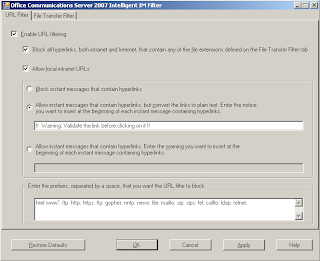
  1. Check Enable URL Filtering and now we have some options to define such as: If we want to block all hyperlinks that contains extentions defined in the File Transfer Filter tab, if we enable local intranet URLs.

In our post we are going to allow IM that contain hyperlinks but we will add a banner into each message and at the botton and instead of a link the user will receive a plain text. We are also able to chose some prefixes that the IIMF filter will be blocking.


Let's do a test, the user administrator as shown in figure bellow will send a link for another user.


The user that receive the IM will receive the link with a friendly warning about the link and the link will receive a caracther "_" in front of the http://. It means if the user really wants to access that website, he have to copy the content and open it in a web browser.

Tuesday, May 27, 2008

Notes for Communicator Web Access

One Server for Both Internal and External Users In order to deploy all users on a single computer, you must run IIS 6.0 in application isolation mode. For details about application isolation modes in IIS 6.0, see “Application Isolation Modes” at http://r.office.microsoft.com/r/rlidOCS?clid=1033&p1=appmodes.

  • Two virtual servers cannot both share the same IP address and also listen on the same port; therefore, you must differentiate the virtual servers on your computer either by IP address or by port number. If both virtual servers use the same IP address, you will need to differentiate them by port number. Many proxy servers accept SSL traffic only on port 443, so you may need to manually configure the external virtual server to use port 443.
  • You must configure your firewall or reverse proxy to map to the appropriate port for each virtual server.
  • Although application isolation reduces security risk, it is still possible for the server to be compromised, which could affect both external and internal users. In contrast, using a separate external server would limit the impact of an attack on the external server to remote users only.


Required Software

The following software must be installed on the computer on which you will be installing Communicator Web Access:·

  • Windows Server 2003 R2 SP2 or Windows Server 2003 with SP1 or later·
  • Windows Installer 3 (included in Windows Server 2003 SP1 or later)·
  • IIS 6.0· .
  • NET Framework 2.0, including ASP.NET 2.0

Note

ASP.NET is automatically registered with IIS if the .NET Framework 2.0 is installed after IIS 6.0 is installed. If you install the .NET Framework first, you must manually register ASP.NET. For details, see http://r.office.microsoft.com/r/rlidOCS?clid=1033&p1=kb325093.

In addition, the following QFEs must be installed:·

Certificates

  • An MTLS connection will succeed only if the subject name for the MTLS certificate is the FQDN (fully qualified domain name) of the Communicator Web Access server
  • SSL certificate. An SSL certificate is required on all Communicator Web Access servers and on any load balancer that is associated with an array of Communicator Web Access servers. The SSL (Secure Sockets Layer) certificate is used by clients that are connecting to the Communicator Web Access server. Each virtual server that is configured with HTTPS (HTTP with SSL) must have an SSL certificate. The CA that issues the SSL certificate for Communicator Web Access does not have to be the same one that issues the Office Communications Server 2007 SSL certificates or the MTLS certificates.

MTLS and HTTPS Certificate Configuration Requirements


Certificate field
ValueVersion 3
Template Duplicated Web Server
EKU Server Authentication (1.3.6.1.5.5.7.3.1)
Private Key Enabled for Export
Key Usage Digital Signature, Key Encipherment (a0)

  • The subject of the Communicator Web Access certificate, which can be configured in the Communicator Web Access Manager, is always the FQDN of the Communicator Web Access server computer
  • The subject name of the SSL certificate corresponds to the FQDN of either the server or the load balancer if one is presentOn a reverse proxy that is deployed in the perimeter network, the subject name of the SSL certificate corresponds to the FQDN of the reverse proxy

Ex:


Single Communicator Web Access virtual server on a computer named computer1.contoso.comNo Web publishing, No load balancing==>The server has an SSL certificate whose subject name is the FQDN of the server, in this case, computer1.contoso.com

Authentication

For remote users and for users of supported browsers that cannot use integrated Windows authentication, the forms-based authentication window will appear.

  • · Optimizing IIS 6.0 scalability. IIS 6.0, running on the Microsoft Windows Server® 2003 operating system, includes a new architecture and new features to improve scalability on your Communicator Web Access server. For detailed information about optimizing IIS 6.0, see “Improving Scalability by Optimizing IIS 6.0 Queues” at http://r.office.microsoft.com/r/rlidOCS?clid=1033&p1=IIS6queue, “Improving Scalability by Optimizing IIS 6.0 Caches” at http://r.office.microsoft.com/r/rlidOCS?clid=1033&p1=IIS6cache, and “Additional Resources for IIS 6.0 Scalability” at http://r.office.microsoft.com/r/rlidOCS?clid=1033&p1=IIS6AddResScal
  • Adjusting the IIS 6.0 user limit. By default, IIS 6.0 has a limit of 8,000 connections. This setting is configurable in the following registry key:HKEY_LOCAL_MACHINE\System\CurrentControlSet\Services\HTTP\ParametersTo increase the limit, create a DWORD entry named "MaxConnections" in this location and set an appropriate limit, allowing for a reasonable tolerance for peak periods. For example, if you want to allow 10,000 connections, you would probably set the value at double this number (20,000). For guidance, see the Microsoft Knowledge Base article “Http.sys registry settings for IIS” at http://r.office.microsoft.com/r/rlidOCS?clid=1033&p1=kb820129.

Magic Quadrant for Unified Communications 2007

Here is the magic Q for Unified Communication 2007. This report is generated by Bern Elliot (Gartner) dated 20 August 2007.


This is the link to the web : http://mediaproducts.gartner.com/reprints/nortel/150273.html